Your notes already hold the lesson. Now they can hold the presentation too. Pick a subject, choose a style, and iTutor turns the material you uploaded into a slide deck: every point cited back to your own files, ready to present, edit, or download as PowerPoint or PDF. Slides used to be a paid feature. From today, every plan can make them: one deck a month on Free, two on Basic, and more with images on the higher plans.
One deck, three ways to read it
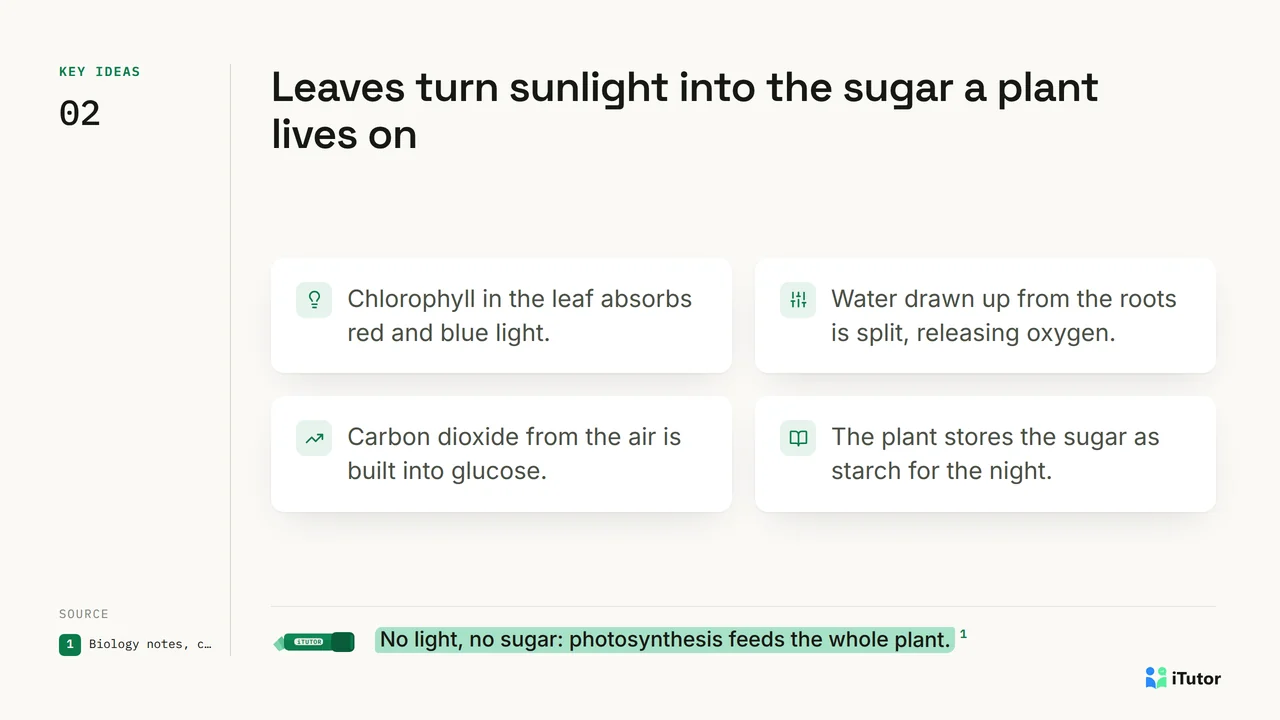
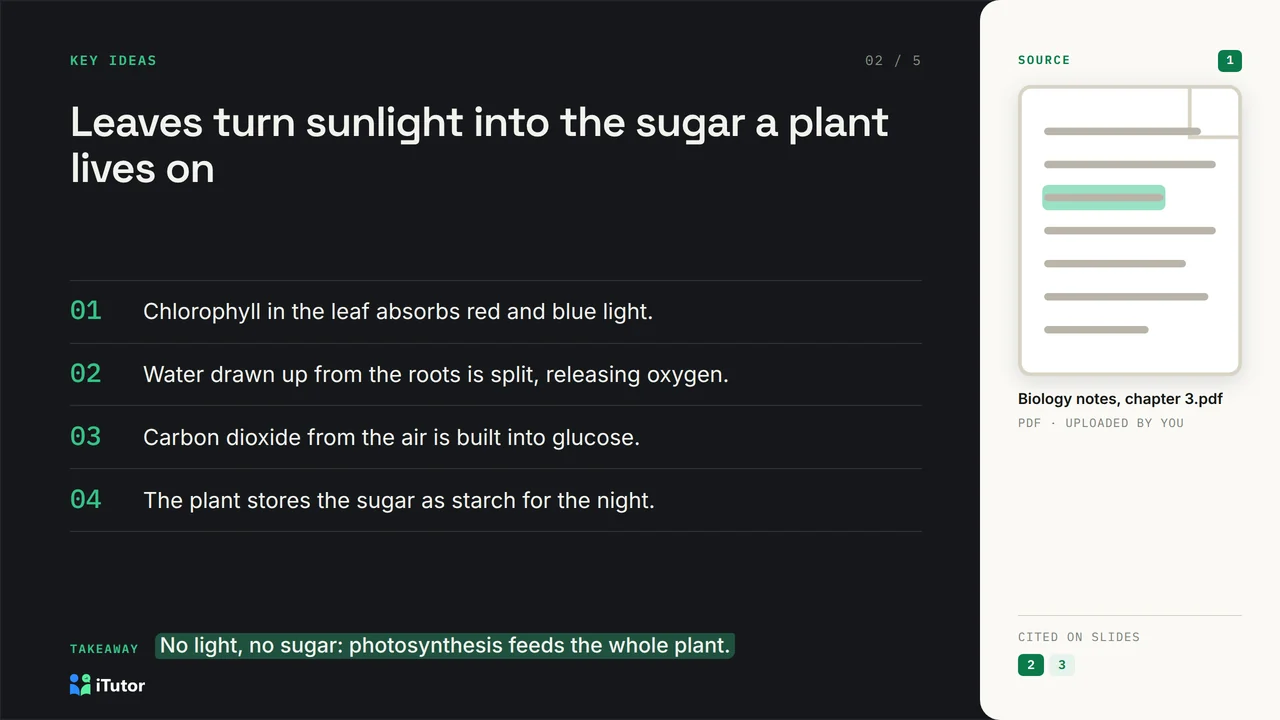
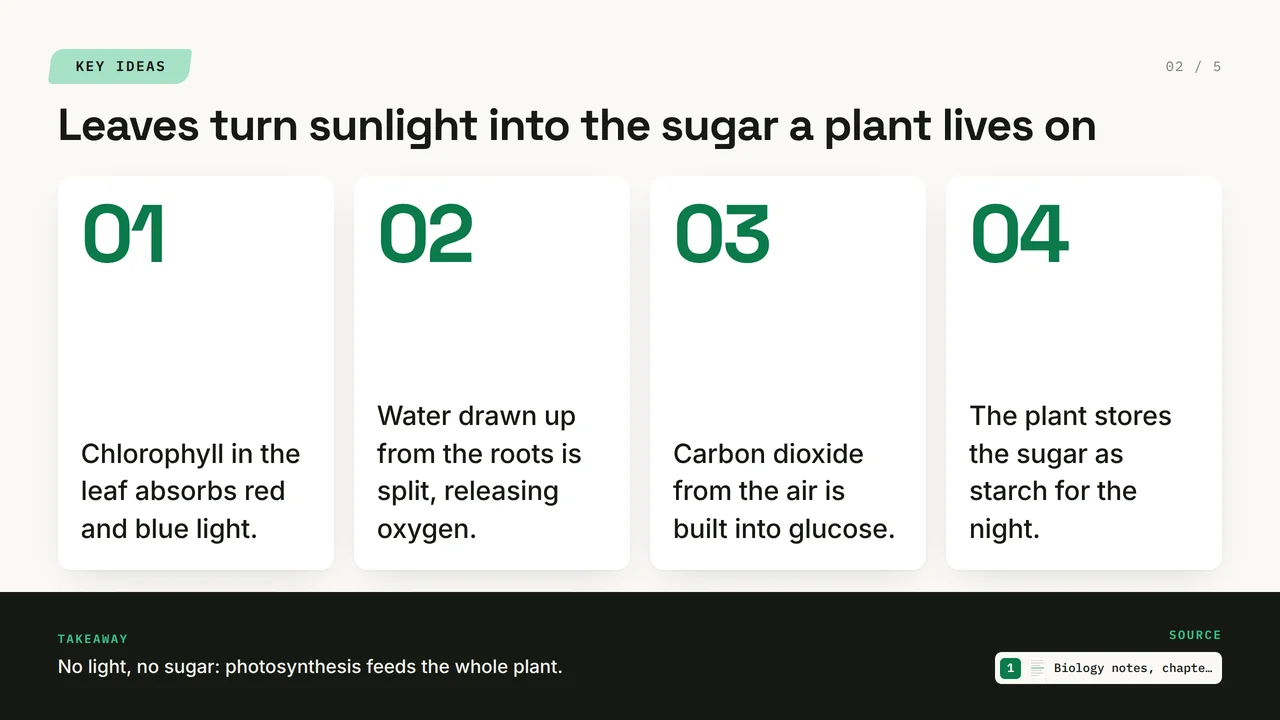
The same slides can look three different ways, and you can switch between them at any time from the Style button. Nothing is regenerated: the words, the order and the sources stay the same, only the design changes.
Every slide shows where it came from
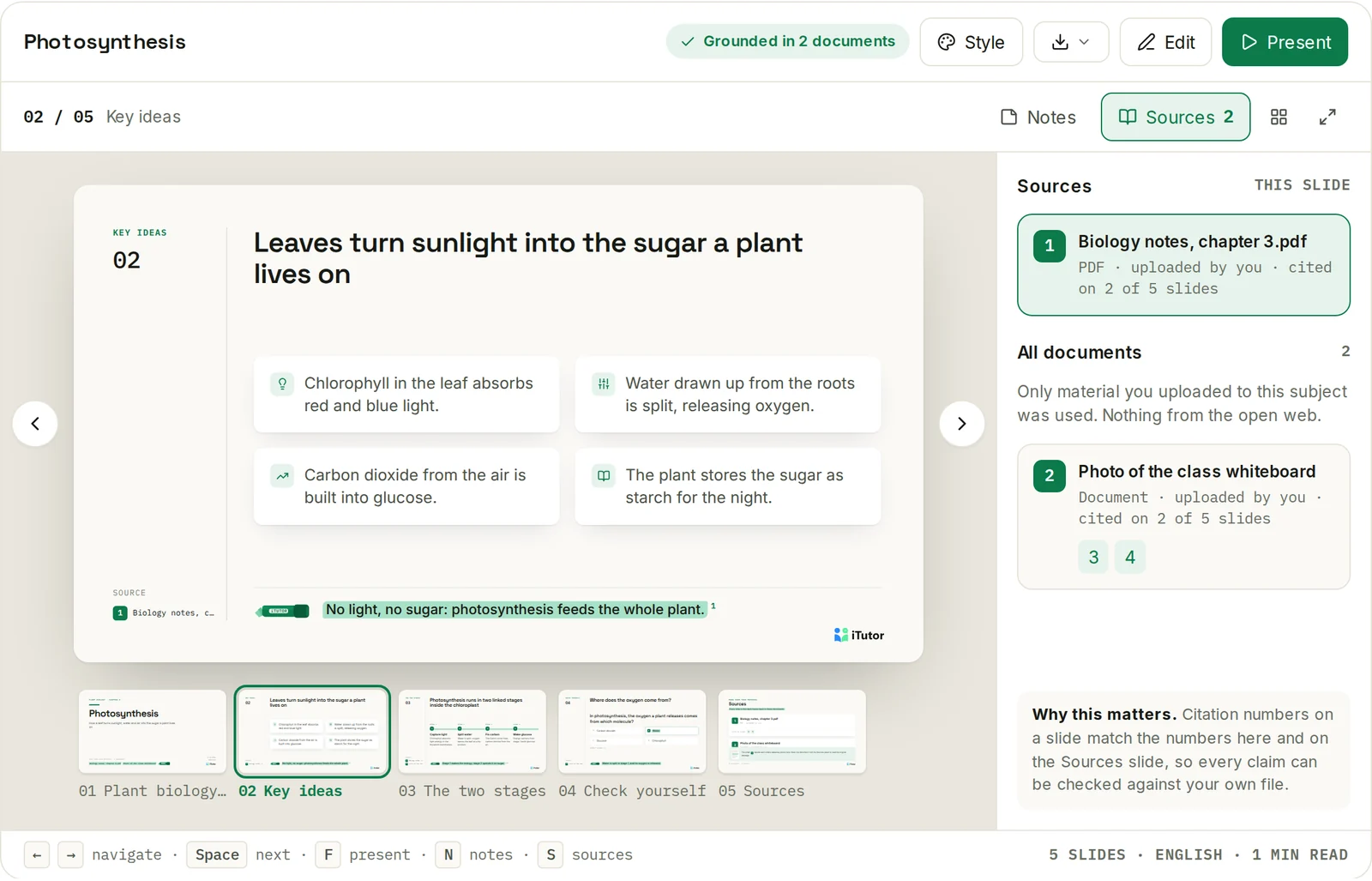
A deck is only useful for studying if you can trust it. So every slide carries small numbered citations, and the same numbers appear in the Sources panel next to the slide and on the Sources slide at the end. Click a source to open the document it came from. The deck is made only from the material you uploaded to that subject, not from the open web, so what you present is what your course actually says.
Edit it like a document
Click Edit and type straight on the slide: a title, a point, a table cell, a quiz answer. A small toolbar on the text you are editing can Shorten, Expand, Rewrite, make it More professional or Fix grammar. The panel on the right holds everything else:
- Content: every field of the slide, with points you can add, remove and drag into order.
- Layout: turn a list into steps, a table or a set of cards. Switch back and your text comes back with it.
- Image: upload a picture or create one on Premium and higher plans.
- Notes: speaker notes for when you present.
Drag slides to reorder them, add a slide from a layout picker, duplicate or delete. Your changes save as you go, Ctrl + Z undoes, and Discard puts the deck back the way it was when you started editing.
Take it anywhere: PowerPoint or PDF
The Download button gives you two files, both in the style you chose:
- PowerPoint (.pptx): fully editable, with real text boxes, tables and charts, and your speaker notes. It uses fonts every copy of PowerPoint has, so the layout holds on any computer.
- PDF: one slide per page, exactly as you see it in iTutor, with text you can select and search. Good for printing, sending, or reading on a phone.
You can also share a deck with a link. Anyone who opens it sees it in your style and can present it or download it, even without an account. Only you can edit it or change its design.
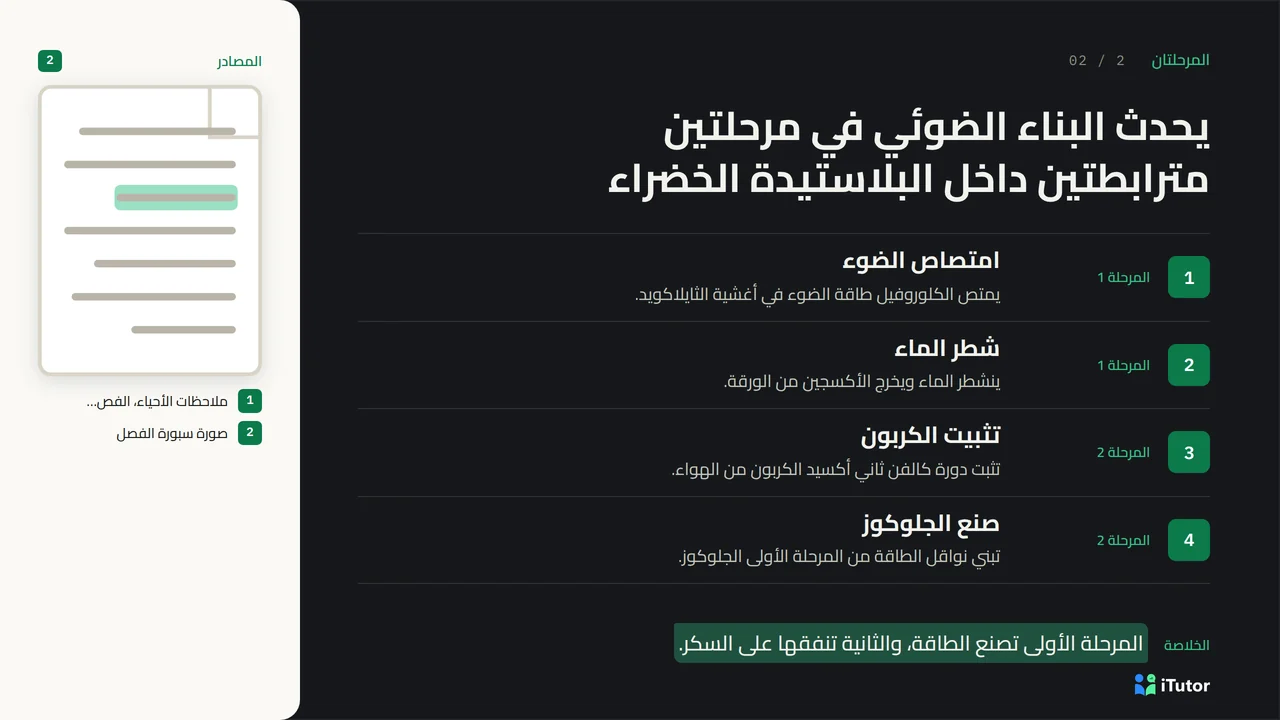
In your language, right to left too
Decks are written in any of iTutor's twelve languages, including Arabic and Urdu, which read right to left: the whole layout mirrors, from the sources column to the order of the steps.
What each plan includes
| Plan | Decks a month | Slides per deck | AI images |
|---|---|---|---|
| Free | 1 | Up to 12 | No |
| Basic | 2 | Up to 12 | No |
| Premium | 10 | Up to 24 | Yes |
| Pro | 50 | Up to 36 | Yes |
| Enterprise | 500 | Up to 48 | Yes |
Every plan gets all three styles, the editor, the Sources panel, sharing, and both downloads. Decks on Free and Basic are made without images. They are built from words, structure and your citations, so they read cleanly on their own. Images come with Premium and higher plans, where you can add an illustration or a photo-style picture to a slide.
Your monthly decks reset at the start of each month. The count you pick when you create a deck is the count you get, with the Sources slide included.
Make your first deck
- Open a subject and upload your material: PDFs, Word files, slides, or photos of your notes.
- Choose Create, then PowerPoint Slides.
- Type a topic, or choose Cover all important topics to let iTutor pick the key ideas across the whole subject.
- Pick a style, a length and the language, then press Generate.
You can also just ask the tutor in the chat, for example "make slides on chapter 3", and a card appears that makes the deck in one tap. Start free on iTutor and turn this week's notes into your first deck.